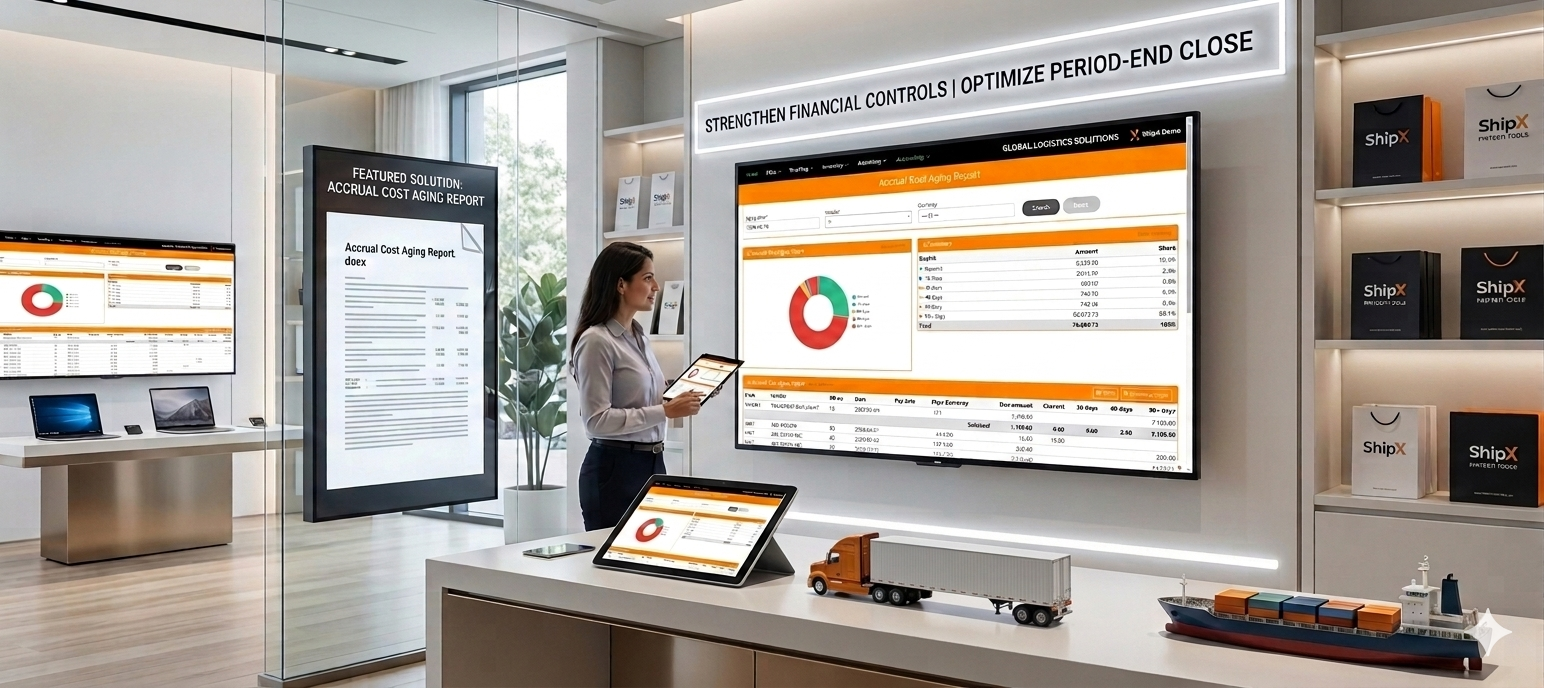
In a logistics environment where financial data accuracy is paramount, maintaining clear visibility into outstanding vendor commitments is a vital control lever. When costs are accrued before vendor invoices are received or processed, it becomes essential to monitor these amounts and track their accounting age.
To address this challenge, the Accrual Cost & Aging Report is an indispensable tool for your accounting teams.
What is the Accrual Cost & Aging Report?
This report provides a detailed view of accrued costs, categorized by vendor and accounting age. It enables teams to:
- Quickly identify outstanding balances that require follow-up, validation, reconciliation, or adjustment before period-end close.
- Strengthen financial controls and improve the accuracy of period-end closings.
- Maintain greater visibility over vendor-related obligations.
How to Use It Effectively
1. Access and Configuration
Accessible via the Accounting module, you can generate the report by following this path: Accounting > Vendor > Accrual Cost Aging Report.
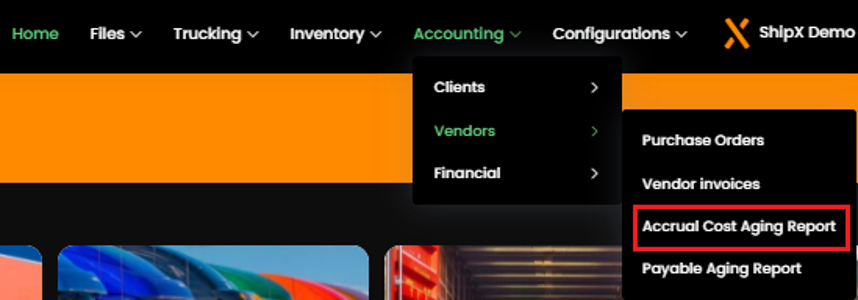
To obtain a relevant analysis, use the search filters:

- Aging Date: Use the last day of the accounting period to ensure consistency across financial reviews.
- Vendor: Ideal for focusing your investigations on a specific partner.
- Currency: Allows you to restrict the analysis to a specific currency.
Key Benefits of the Accrual Cost & Aging Report
2. Interpreting the Data
The report is divided into two key sections:
- Summary Section: A pie chart and a summary table provide a consolidated view of cost aging.

- Transaction Details: The lower section displays detailed transactions, with clear columns ranging from vendor code to due amount.
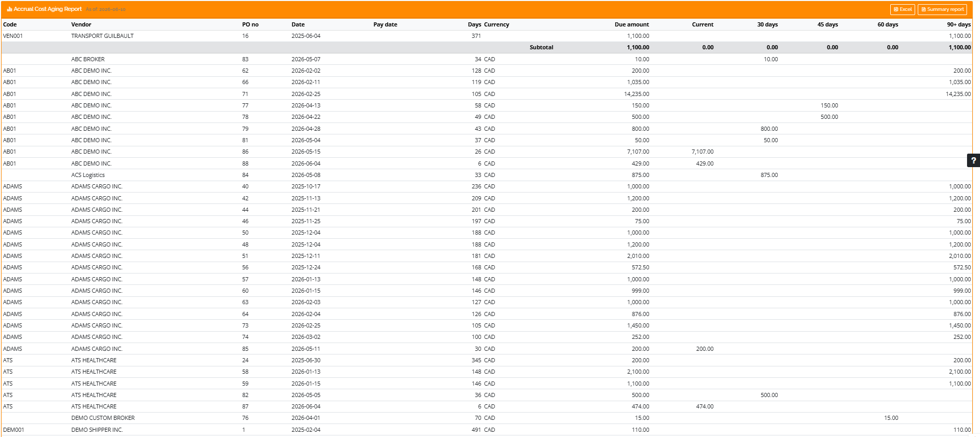
Expert Tip: A significant percentage of balances in the “90+ Days” category is a red flag. This may indicate a missing vendor invoice, an unmatched transaction, or an accrual that is no longer required. Use the Vendor filter to facilitate discussions with purchasing or operations teams.
Exporting and Monitoring
For audits or in-depth analysis, two export options are available in the upper-right corner:
- Excel: Exports the complete report, including all transaction details.
- Summary Report: Exports only the aging overview section.
Productivity Tip: Retaining monthly exports provides a valuable historical record and helps identify trends in outstanding accrued costs over time.