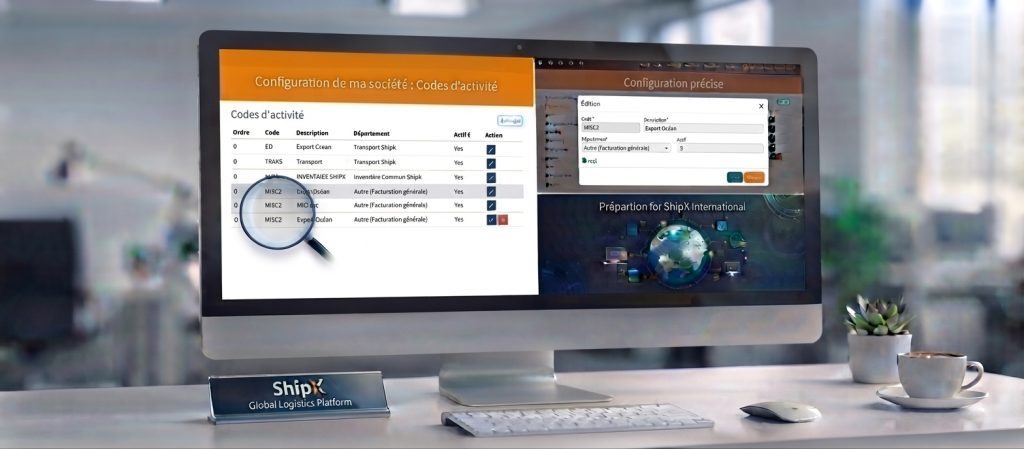

Welcome to the POD & Documents section of the Edit Ship Order module. Think of this page as your digital file cabinet for the order. You can use it to attach files, keep track of shipping documents, and share important updates with your clients in just a few clicks.
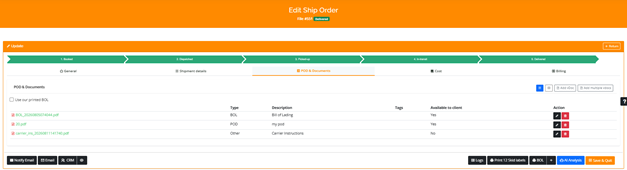
1. Understanding Your Document Table
The main table on this page gives you a clear overview of every file attached to the shipment:
- File Name: Click on any document name (such as BOL_20260805074044.pdf or 20.pdf) to open or download it.
- Type: Shows what kind of document it is—such as a BOL (Bill of Lading), a POD (Proof of Delivery), or Other.
- Description: A short label explaining what the file contains (for example, Carrier Instructions).
- Tags: Optional keywords to help you group or filter files.
- Available to Client: Controls who can view the file.
- Set to Yes to make files visible to your client (like BOLs or PODs).
- Set to No to keep internal files private (like internal instructions).
- Action: Use the pencil icon to edit file details or the trash icon to delete a file.
2. How to Upload Documents
To add new files to the order, use the buttons located at the top-right corner of the table:
- Add vDoc: Click this button to upload a single document (virtual document). It opens a window where you can select a file from your computer or use the drag & drop, assign its type (BOL, POD, or Other), add a short description, the vDoc type and set whether it should be visible to the client.
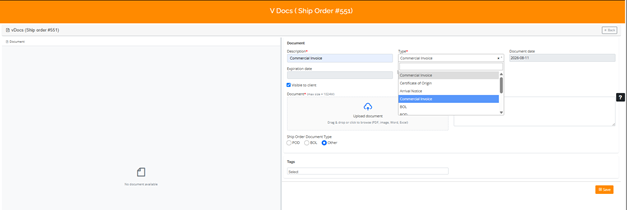
- Add multiple vdocs: Use this button to upload several files at once. This saves time when you have multiple documents to add to the same order simultaneously.

- Add the BOL to vDoc: Click on the + next BOL to add the system-generated Bill of Lading.

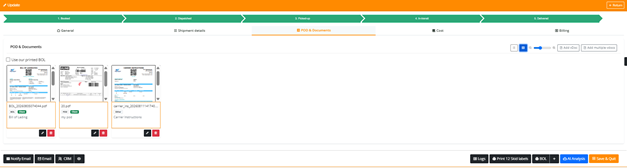
- Display Views: Use the small icons next to the upload buttons to switch between a detailed list view and a card grid view.
Pro-Tip: Save Time with Pre-configured V Doc Types
Navigating path : Configuration > Vdoc >
Setting up your V Doc Types properly ahead of time will save you valuable time when managing shipments day-to-day.
When you upload a document under an order, choosing a pre-configured V Doc Type automatically fills in its description and sets the correct client visibility (Y or N). This helps avoid manual entry errors and ensures that sensitive internal paperwork is never accidentally shared with clients!
Conclusion
Mastering your document workflow is one of the simplest ways to streamline your daily operations. By configuring your V Doc Types in advance and using the POD & Documents tab effectively, you keep every shipment organized, reduce manual entry errors, and maintain total control over what your clients can see.
Whether you are uploading a single Proof of Delivery or managing bulk files across multiple orders, clear document management ensures smooth communication and accurate record-keeping for every shipment. If you ever need to create new document types or adjust default visibility settings, contact your system administrator to update your system settings.